Guides › Homepage changed by itself
Your homepage changed by itself. Here is how to reset it
If your homepage or startup page changed without you setting it, check for an unwanted extension, restore the official homepage and startup settings, then reset the browser only if the change comes back.
Homepage, startup page, and new tab are three settings
Google Chrome Help says the homepage and the startup page are not the same unless you set them to be. Mixing them up is the usual reason a “fix” looks as if it failed.
- Homepage: the page that opens when you select the Home button.
- Startup page: the page or pages that open when you first launch the browser.
- New tab page: the page that appears when you open a new tab.
Chrome Help also says that if the startup page, homepage, or search engine has suddenly changed, you may have unwanted software. The same article points to Chrome’s reset-settings steps. Microsoft’s Edge help and Mozilla’s Firefox help treat homepage as a setting you choose. None of those official pages let a website silently replace every new tab; Chrome’s New Tab help says a custom new-tab website needs an extension that overrides the New Tab page.
How to tell what took over
Work through these checks before you reset the whole browser. A reset is useful, but it is not the first step.
- Open a new window. Note the address that loads. That is the startup page, not always the homepage.
- If the Home button is visible, select it. Note that address. That is the homepage.
- Open one new tab. If a dashboard you did not install appears, a new-tab extension is in control.
- Open the extensions list (Chrome:
chrome://extensions, Edge:edge://extensions, Firefox:about:addons) and look for any new-tab, search, or “home” add-on you do not remember installing.
Chrome Help on unwanted ads and malware lists these warning signs: a homepage or search engine that keeps changing, extensions or toolbars that return after you remove them, and redirects to unfamiliar pages. If those match what you see, remove the program on the computer as well as the extension.
Chrome: put the homepage and startup page back
These menu names come from Chrome Help, checked October 2026.
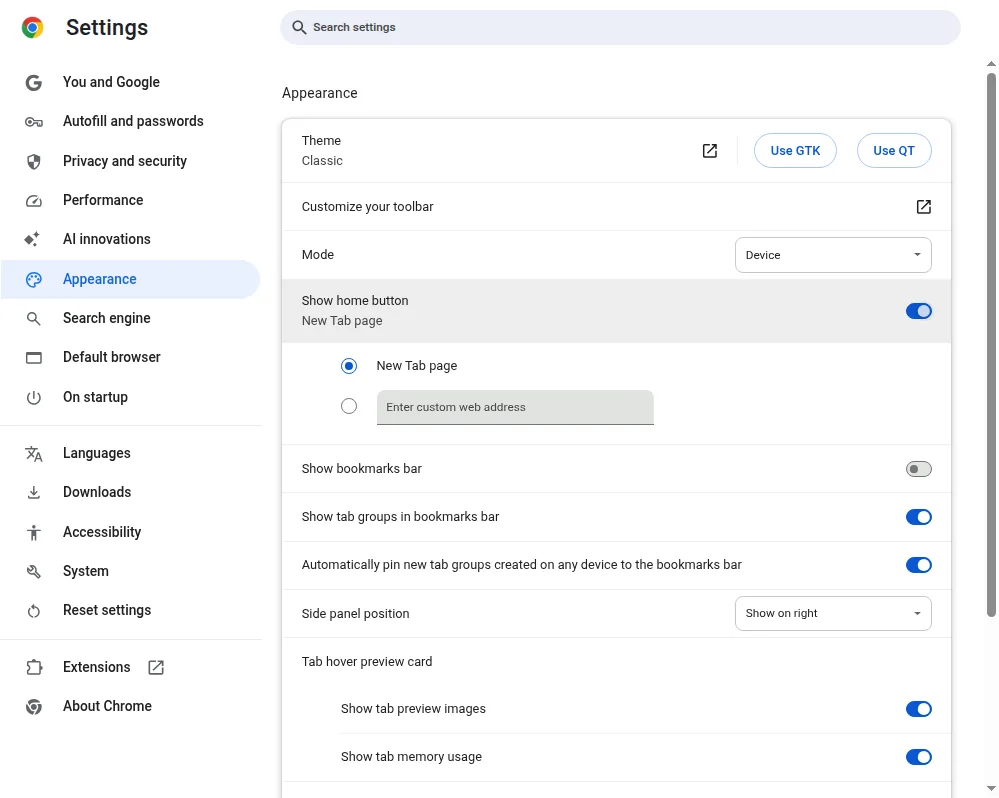
Set the homepage again
- On your computer, open Chrome.
- At the top right, select More, then Settings.
- Under Appearance, turn on Show Home button.
- Under Show Home button, choose the New Tab page, or enter a custom address such as
https://www.google.comorhttps://www.dayblaster.com.
Set the startup page again
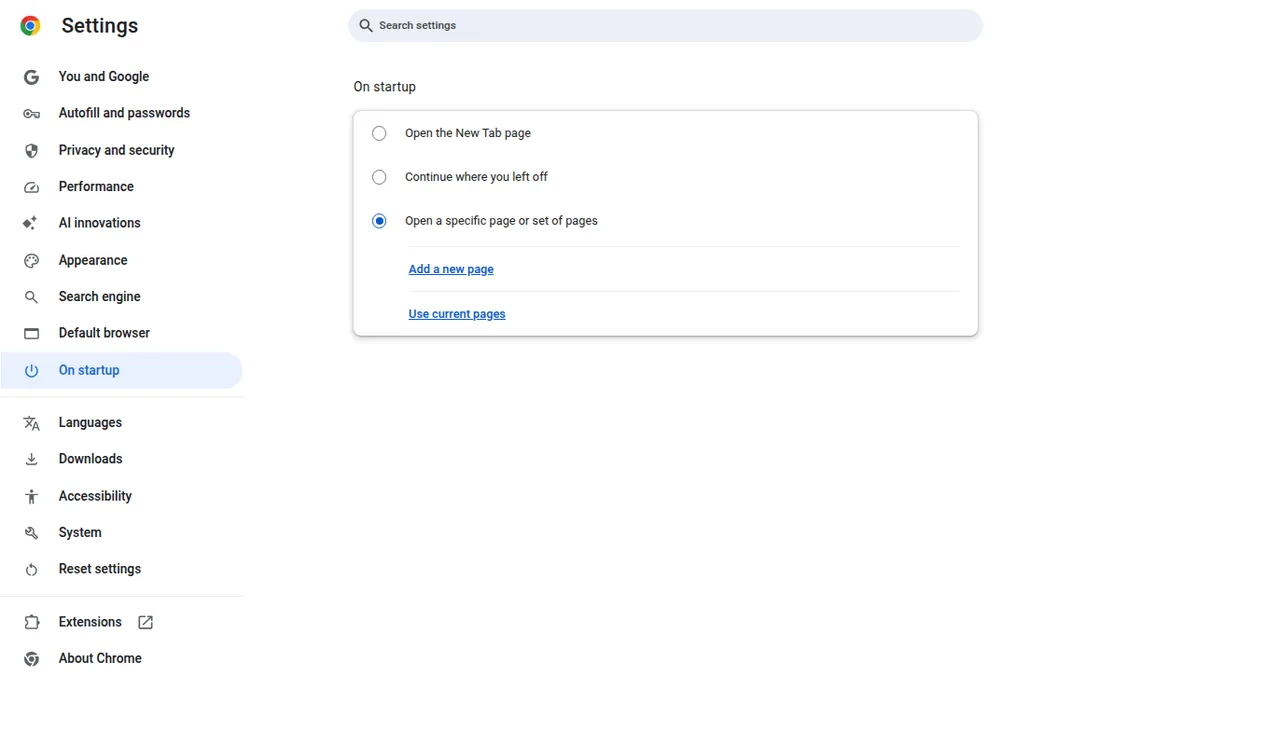
- In Settings, open On startup.
- Choose Open the New Tab page, Continue where you left off, or Open a specific page or set of pages.
- If you choose a specific page, select Add a new page, enter the address, then select Add.
On a work or school Chromebook, Chrome Help says an administrator can lock the homepage and startup page. If those controls are greyed out, you cannot change them on that device.
Remove a Chrome extension that replaced the new tab
- Go to
chrome://extensions. - Find the extension that overrides the new tab.
- Select Remove, or turn it off.
- Open a new tab. Chrome’s default New Tab page should return unless another new-tab extension is still enabled.
Reset Chrome only if the change returns
Chrome Help, “Reset Chrome settings to default,” says a reset restores settings changed without your knowledge. Bookmarks and saved passwords are not deleted. These settings go back to default on devices where that Chrome profile is signed in: default search engine, homepage and startup tabs, the new tab page, pinned tabs, some content settings, cookies and site data, plus extensions and themes.
- Open Chrome Settings.
- Select Reset settings, then Restore settings to their original defaults, then Reset settings.
After a reset, Chrome Help says you have to turn trusted extensions on again from More > Extensions > Manage extensions. Chrome also says it checks for unwanted setting changes when it launches and can reset search, homepage, startup pages, pinned tabs, and extensions on its own.
Microsoft Edge: homepage, startup, and the new tab feed
Microsoft Support, “Change your browser home page,” checked October 2026, gives this path:
- Open Microsoft Edge and select Settings and more, then Settings.
- Select Start, home, and new tab page.
- Turn on Show home button on the toolbar.
- Choose New tab page, or select Enter URL and type the address you want.
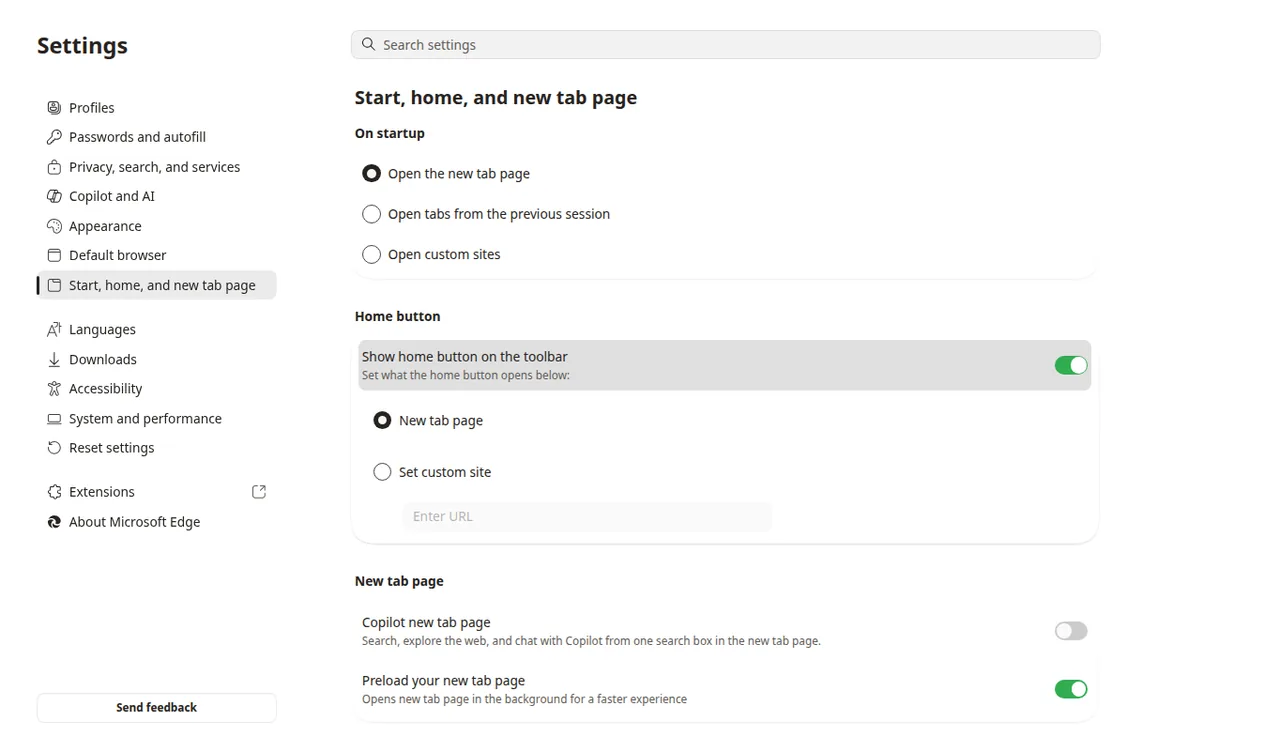
On the same settings page you can choose what opens when Edge starts. To open a site you picked, choose Open these pages and add the address. That is the startup setting. It is not the new tab page.
Edge’s new tab can show a Microsoft news feed. Microsoft’s Edge Learning Center (12 March 2024, checked October 2026) says you can open Page settings (the gear) and set Content to Content off. After that, the article says the new tab still shows bookmarks, the search bar, the Bing toolbar, and the weather. Layout > Focused moves the feed down the page instead of removing it. Those controls change the built-in new tab. They do not point every new tab at a custom website.
To remove an Edge add-on that replaced the new tab, open edge://extensions, find the add-on,
and remove it.
Firefox: homepage and new windows
Mozilla’s “How to set the home page” is the official article for this setting. Microsoft’s own homepage article also restates the Firefox path. Combined with the Home panel labels used in current Firefox (checked October 2026):
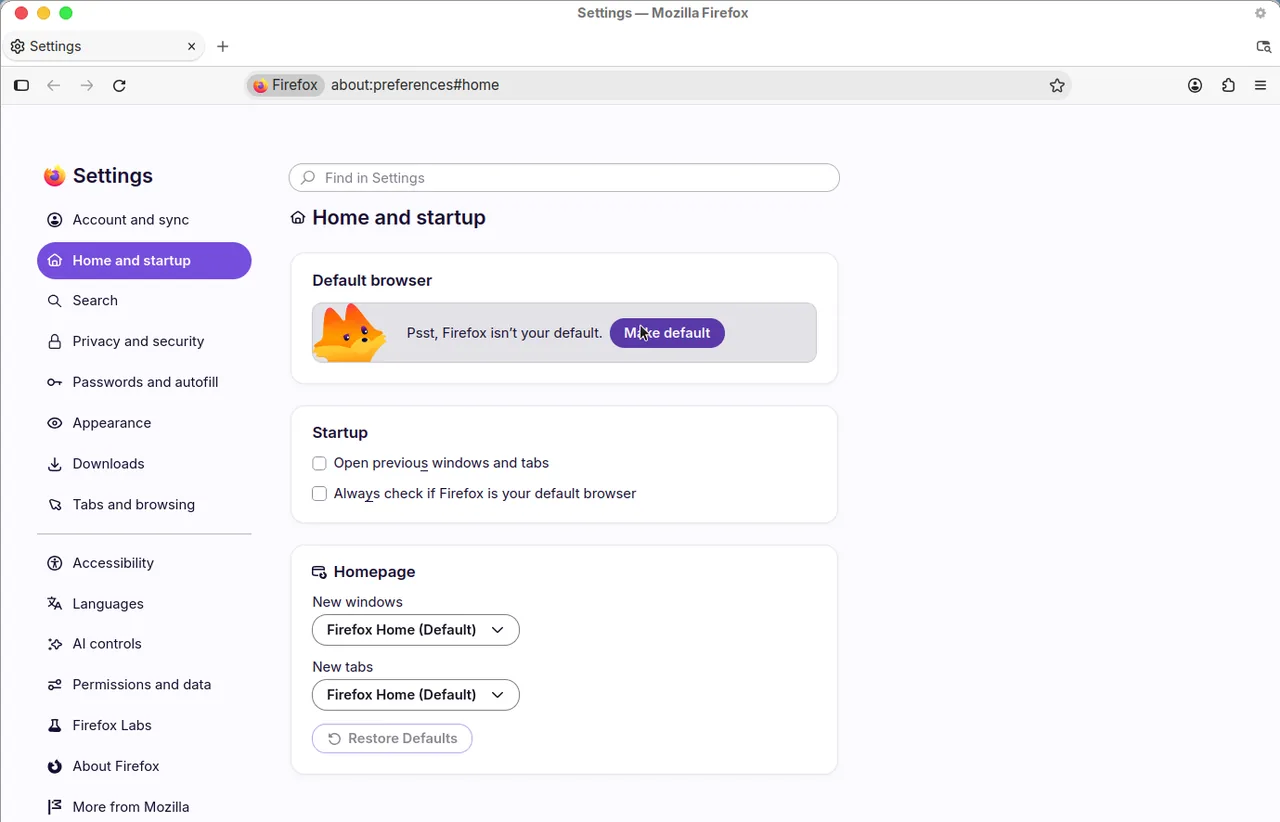
- Open Firefox and select the menu button (three lines), then Settings.
- Open the Home panel (some versions say Home and startup).
- Next to Homepage and new windows, open the menu.
- Choose Firefox Home (Default), Custom URLs, or Blank page.
- If you choose Custom URLs, enter
https://www.google.comor another address such ashttps://www.dayblaster.com.
That Home setting covers new windows. Firefox Help for the New Tab page says the New Tab page is the
default start page unless you set a different home page, and that you can set new tabs to a blank page
from the same panel. It does not give a custom website field for every new tab the way the homepage field
does. To remove an add-on that changed the new tab, open about:addons and remove it.
What to set after you regain control
Once the unwanted extension is gone, set both the homepage and the startup page to an address you chose.
If you want Google’s search page, use https://www.google.com. If you want a start page with
grouped shortcuts, use a site you trust. Dayblaster is a free start page at
https://www.dayblaster.com. You can type that address in the homepage or startup fields
above. That does not require an account.
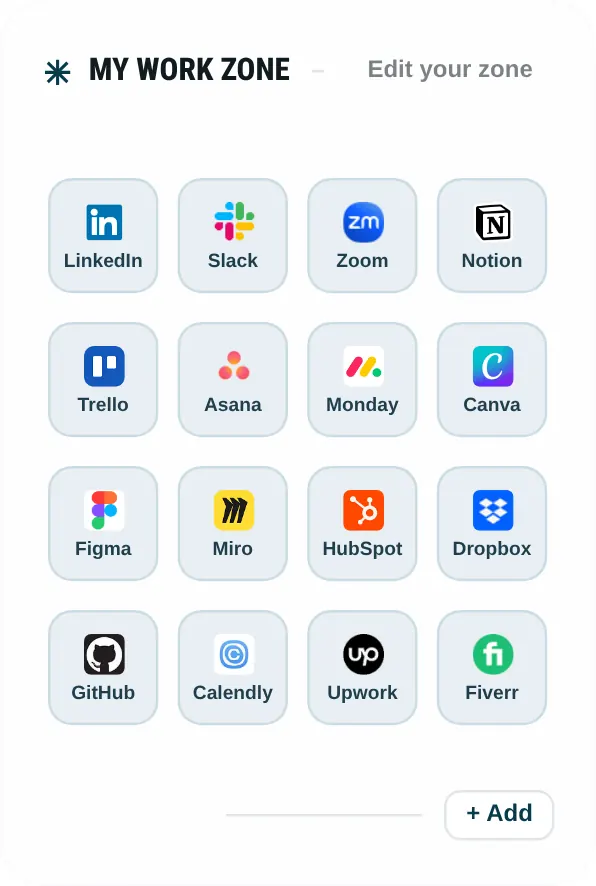
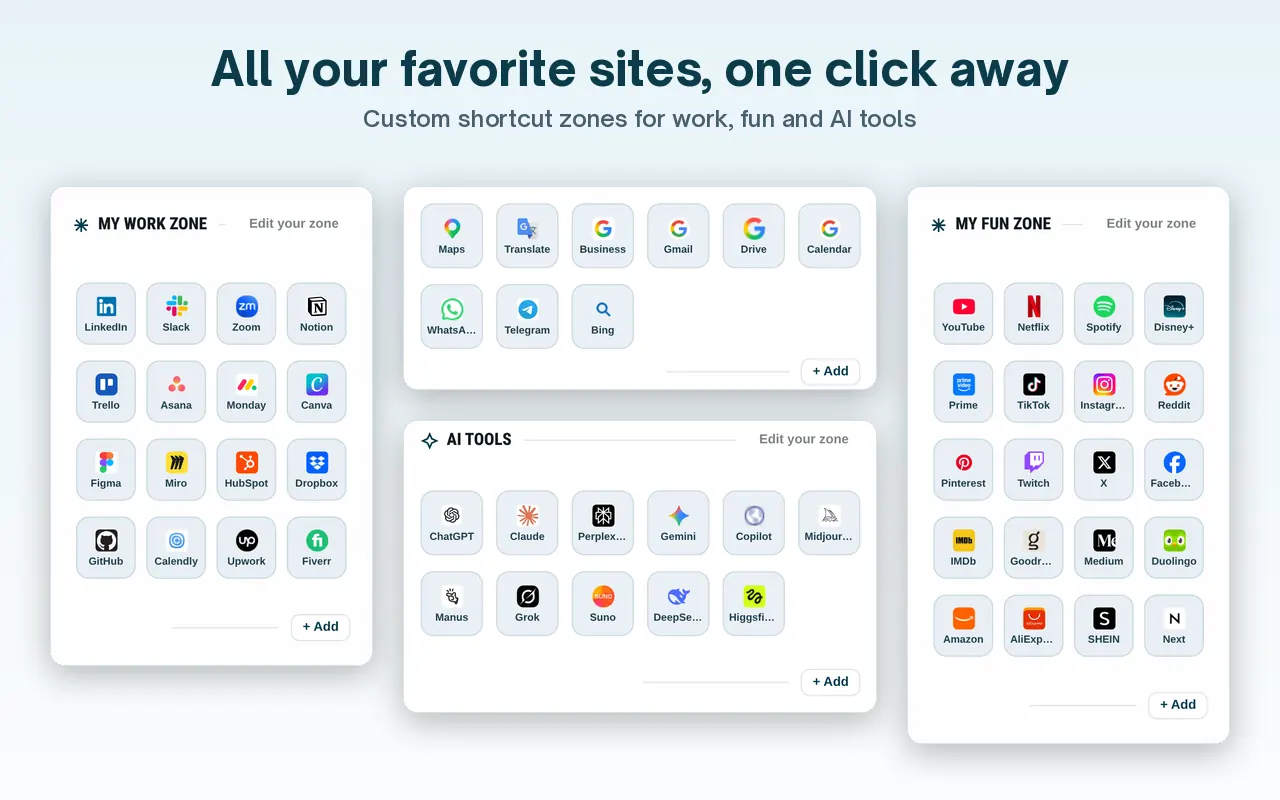
Setting Dayblaster as the homepage does not replace every new tab in Chrome or Edge. Chrome Help, “Customize your New Tab page,” describes shortcuts, themes, cards and the footer. It does not offer a custom website for every new tab. The Dayblaster Chrome extension is the product’s New Tab override. This page does not claim an Edge, Firefox, Safari, or phone app for that override. If you only want the Home button and startup page, you do not need the extension.
If a start page later resets to defaults, Dayblaster keeps a cloud version history for signed-in accounts and a local backup file. See how to recover a dashboard.
Managed devices and leftover programs
Chrome Help says that if you use a Chromebook at work or school you cannot choose the startup page or homepage; the network administrator controls those pages. Contact that administrator instead of running a reset that cannot stick.
On a personal Windows PC, Chrome Help on unwanted software says to open Settings > Apps > Installed apps and uninstall programs you do not recognize before you reset the browser. On a Mac, it says to use Finder > Applications, move unknown programs to Trash, then empty Trash. After that, use the Chrome reset path above if the homepage still comes back.
Safe Browsing, avoiding password-protected zip downloads from unknown sites, and refusing unexpected “virus” pop-ups are the prevention tips on that same Chrome Help page. This guide does not add unofficial cleaner tools.
Related guides
Make Google your homepage or change it · Set homepage and new tab in every browser · Chrome new tab extensions · Chrome New Tab page settings · Edge homepage and new tab · Firefox homepage and new tab · New tab extension privacy
Official sources
Menu paths and malware notes on this page were checked against these official articles in October 2026:
- Set your homepage and startup page (Google Chrome Help, checked October 2026)
- Customize your New Tab page in Chrome (Google Chrome Help, checked October 2026)
- Reset Chrome settings to default (Google Chrome Help, checked October 2026)
- Remove unwanted ads, pop-ups and malware (Google Chrome Help, checked October 2026)
- Change your browser home page (Microsoft Support, checked October 2026)
- Hide your Microsoft Edge news feed (Microsoft Edge Learning Center, 12 March 2024, checked October 2026)
- How to set the home page (Firefox Help, checked October 2026)
More: Guides · FAQ · About · Contact · Terms · Chrome Web Store · Cookie settings