Guides › Chrome New Tab settings
Chrome New Tab page settings: what you can change without an extension
Chrome lets you change shortcuts, the theme, cards and the New Tab footer. It does not let you type a custom website for every new tab; that still needs an extension that overrides the New Tab page.
What the built-in New Tab page is
Chrome Help, “Customize your New Tab page in Chrome,” says that when you open a new tab you can find websites you visit often, or shortcuts you chose, under the search box. The same article says you must be signed in to a Google Account and use Google as your default search engine to customize that page. In some countries you may also need to manage linked Google services before Chrome can use history for personalization.
That New Tab page is not the homepage. Chrome Help, “Set your homepage and startup page,” says the
homepage is the page you open with Home, and the startup page is what appears when you launch Chrome.
Those two settings are not the same unless you set them to be. Changing Appearance or On startup does
not replace every Ctrl+T or Cmd+T tab.
What you can change in Customize Chrome
These steps are from Chrome Help, checked October 2026. They apply on a computer.
Shortcuts or most visited sites
- On your computer, open Chrome.
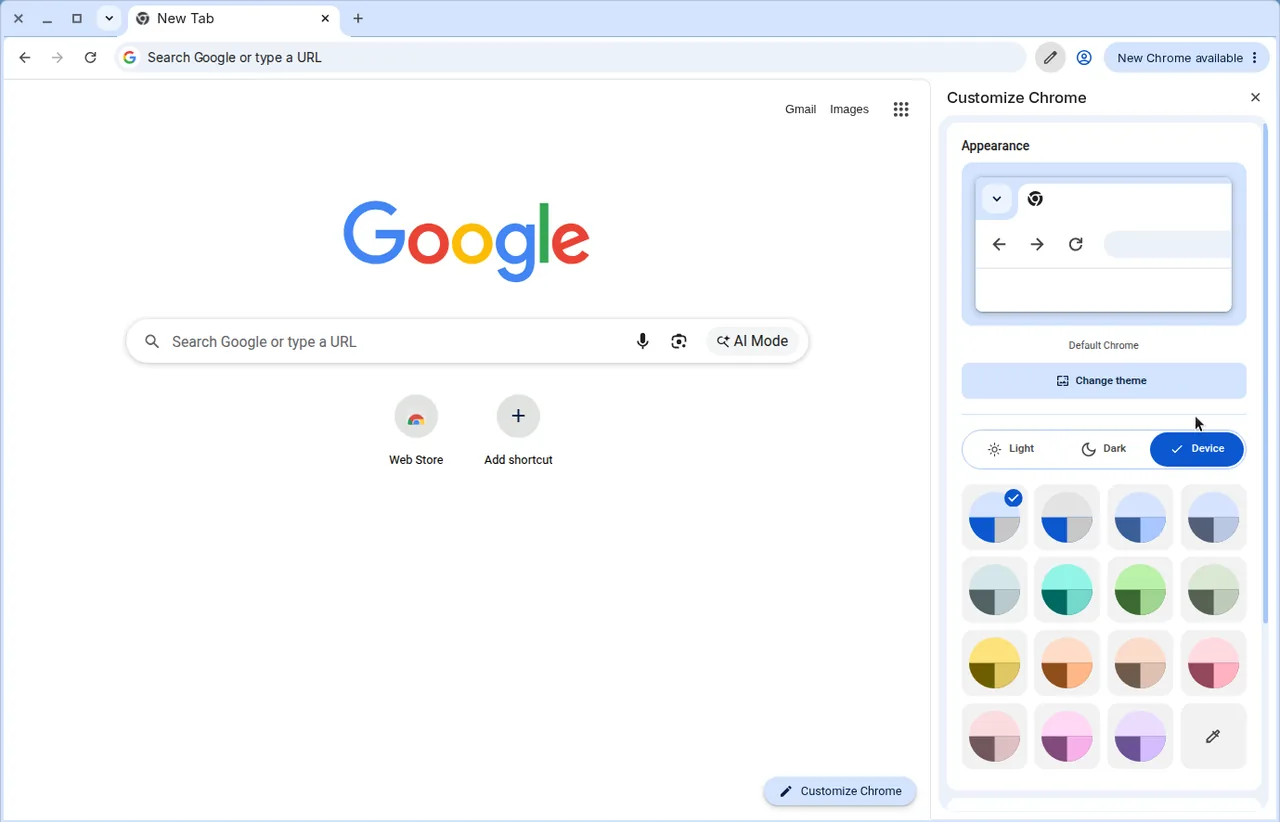
- Open a new tab. At the bottom right, select Customize Chrome.
- Under Shortcuts, select My shortcuts or Most visited sites.
- To hide the row, turn off Show shortcuts.
To edit or remove a shortcut, point at its icon, select More, then choose Edit shortcut or Remove. That is the built-in tile row. It is not a grouped shortcut board.
Background, color, and dark mode
- On a New Tab page, select Customize Chrome.
- Under Appearance, select Change theme.
- Pick a gallery theme or select Upload an image.
- Chrome suggests a browser color from the theme. You can pick another color under Appearance.
- To follow the device theme, or force light or dark, use the Light, Dark, or Device options under Appearance.
Chrome Help says you can turn on Refresh daily on a collection if you want the background to change each day. Select Reset to Default Chrome at the bottom of the panel to undo a theme.
Cards, resume browsing, and the footer
Chrome Help says Chrome can show Cards based on your activity if you are signed in. You can turn cards on or off: at the bottom of a New Tab page select Customize, then Cards / Customize Cards, and choose what to show. The same article describes a Resume browsing card (including “Open all in a new tab group” and Hide) and a “Continue with these tabs” card for recent tabs from other devices signed in to the same Google Account (tabs opened within the last 24 hours; the feature may not work in all languages).
A Drive priority card can appear on some managed devices. Chrome Help says that card does not appear on your computer New Tab page. The New Tab footer can be shown or hidden from Customize Chrome under Footer, or by right-clicking the footer and selecting Hide footer on New Tab page. If an extension controls the New Tab page, Chrome Help says you will be able to find it in the footer. If the browser is managed, an administrator can lock footer visibility.
What Settings cannot do
There is no Chrome Settings field that says “use this website as every new tab.” Chrome Help documents homepage, startup, shortcuts, theme, cards and footer. It does not document a custom New Tab URL. The official mechanism for a custom new-tab website is an extension that declares a New Tab override.
That is why a homepage you set under Appearance can look correct when you click Home, while
Ctrl+T still shows Google’s New Tab page. The two settings are doing different jobs.
See the homepage and new tab guide and
how to change the homepage.
When an extension takes the New Tab page
After you install a new-tab extension, Chrome may show a notice about changing back to Google. The
footer on the New Tab page is where Chrome Help says you can identify an extension that controls the
page. To remove it, open chrome://extensions, find the extension, and select Remove.
More than one new-tab extension can fight for the same slot; leave only the one you want enabled.
The Dayblaster Chrome extension is a Manifest V3 New Tab override. The public listing says its single purpose is to set Dayblaster as the new-tab page, and that it requests no special permissions and collects no data of its own. The listing’s Privacy section says the developer will not collect or use your data (checked October 2026). Opening a new tab loads https://www.dayblaster.com/. Read the permission table on new tab extension privacy.
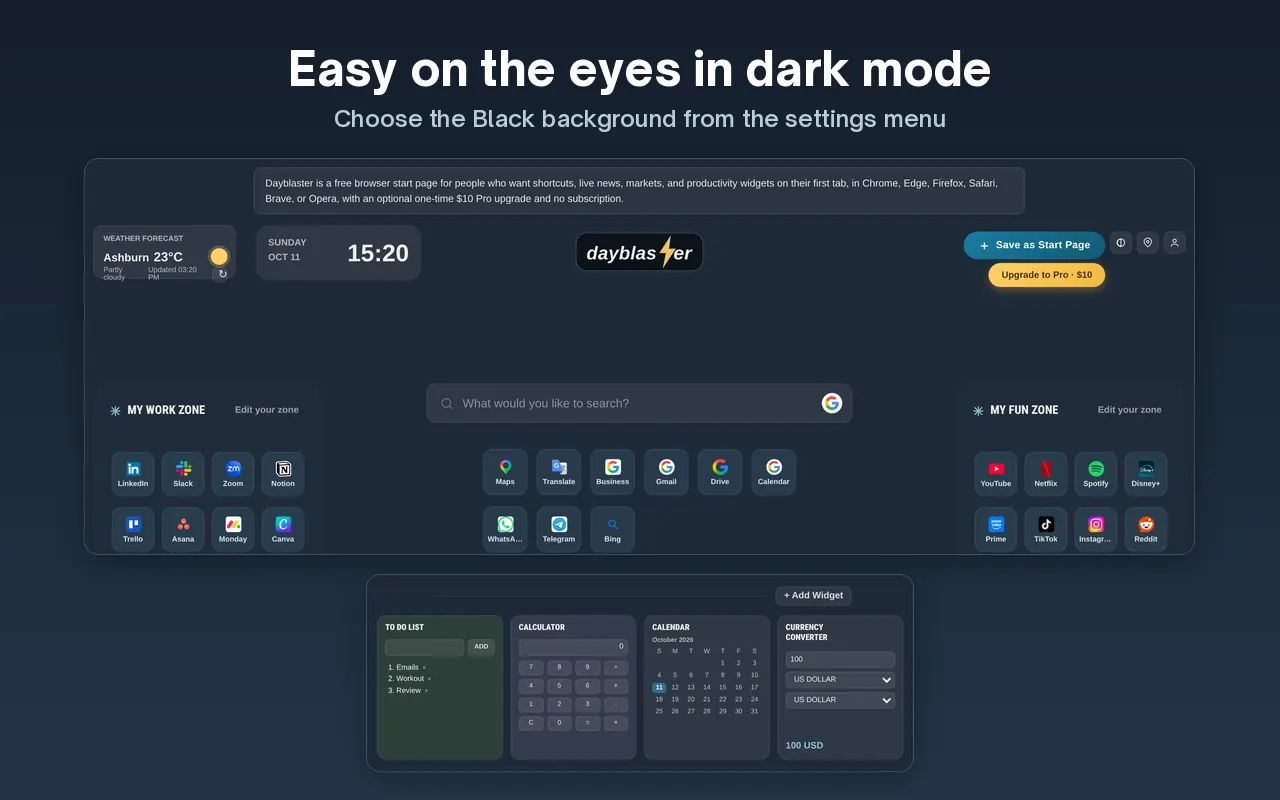
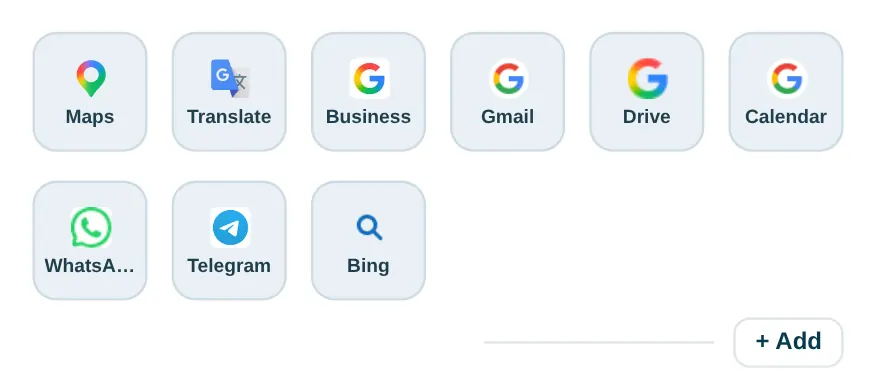
If you already use Dayblaster and the page jumped back to defaults, that is a saved-settings problem, not a Chrome New Tab setting. Use cloud version history or a backup file. To add more than Chrome’s built-in tiles, see how to add shortcuts.
Homepage and startup if you also want those
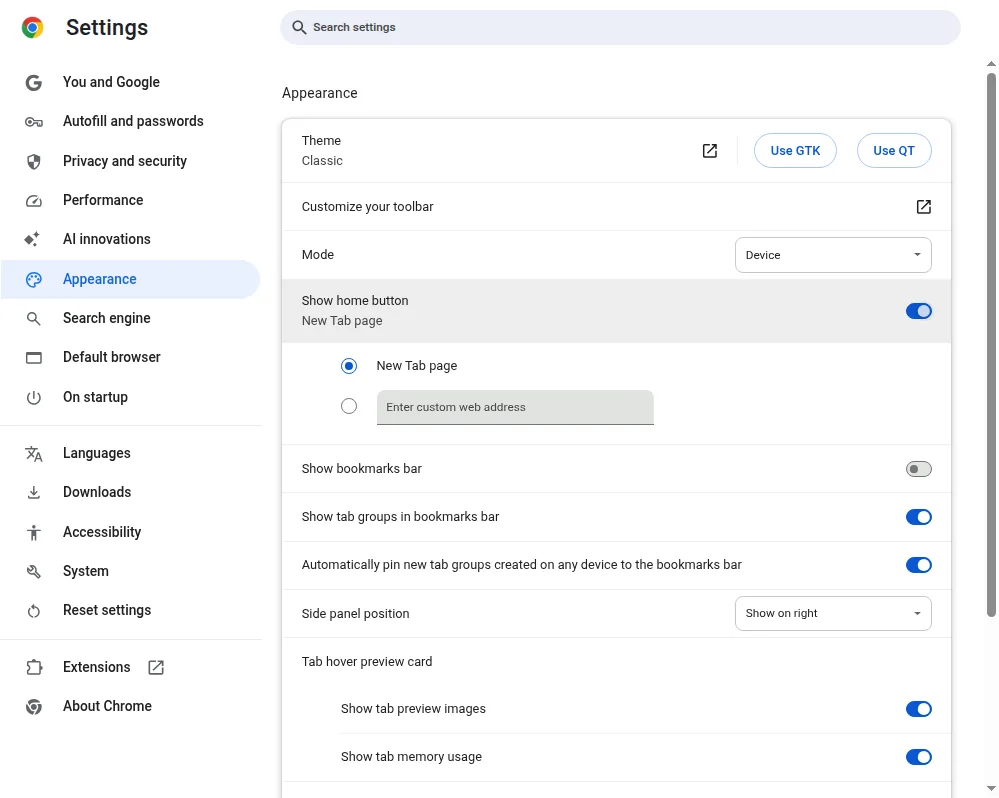
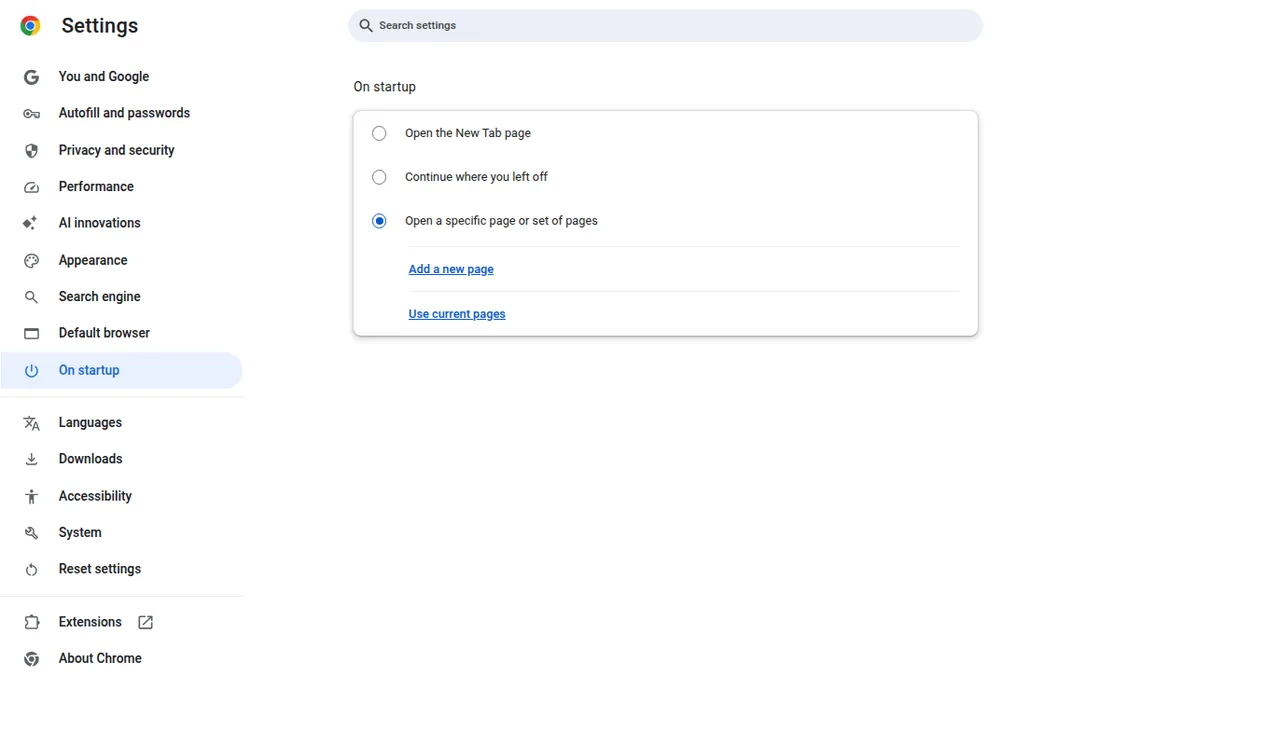
If your goal is the page that opens when Chrome launches, use Settings > On startup > Open a specific page or set of pages, then add the address. If your goal is the Home button, use Settings > Appearance > Show Home button. Chrome Help repeats that those pages are not the New Tab page unless you set them to be. You can point Home and startup at Dayblaster and still leave New Tab on Chrome’s default tiles, or the other way around.
Chrome Help also mentions AI-created themes and a “suggested articles” note: suggested articles do not
appear on your homepage on your computer. Cards are a New Tab feature for signed-in users. None of
those options accept https://www.dayblaster.com as the New Tab URL.
On a managed profile the administrator can lock New Tab footer visibility and, on some devices, show a Drive priority card. If Customize Chrome is missing, check whether the browser is managed before assuming the product is broken.
Related guides
Add shortcuts to your new tab · Chrome new tab extensions · Recover a lost dashboard · Homepage changed by itself · New tab extension privacy
Official sources
- Customize your New Tab page in Chrome (Google Chrome Help, checked October 2026)
- Set your homepage and startup page (Google Chrome Help, checked October 2026)
- Dayblaster Chrome Web Store listing (checked October 2026)
More: Guides · FAQ · About · Contact · Terms · Chrome Web Store · Cookie settings