Guides › Set your homepage & new tab
How to set your homepage and new tab in every browser
A complete 2026 walkthrough for Chrome, Edge, Firefox, Safari, Brave and Opera — including the one limitation almost every other guide forgets to mention.
The page you can paste is the Dayblaster start page at
https://www.dayblaster.com. If you are choosing a product first, see
Dayblaster vs Momentum and
Dayblaster vs start.me.
Your browser actually has three separate "start" settings, and mixing them up is the single most common reason people can't get the page they want. Before the steps, it helps to know exactly what each one controls:
- Homepage — the page that opens when you click the home button (🏠).
- Startup / on-launch page — what opens when you first start the browser.
- New tab page — what appears every time you open a new tab.
The homepage and startup page can be changed in settings. The new tab page usually cannot — Chrome and Edge lock it, and only a browser extension can override it. We'll flag that where it matters.
Google Chrome
- Open the ⋮ menu (top-right) → Settings.
- Go to Appearance → turn on Show home button → select the custom-address field and paste your address.
- Go to On startup → choose Open a specific page or set of pages → Add a new page → paste the same address.
Ctrl+T can't be changed in
settings. Only an extension can replace it. Dayblaster’s free Chrome new-tab extension is on the
Chrome Web Store.
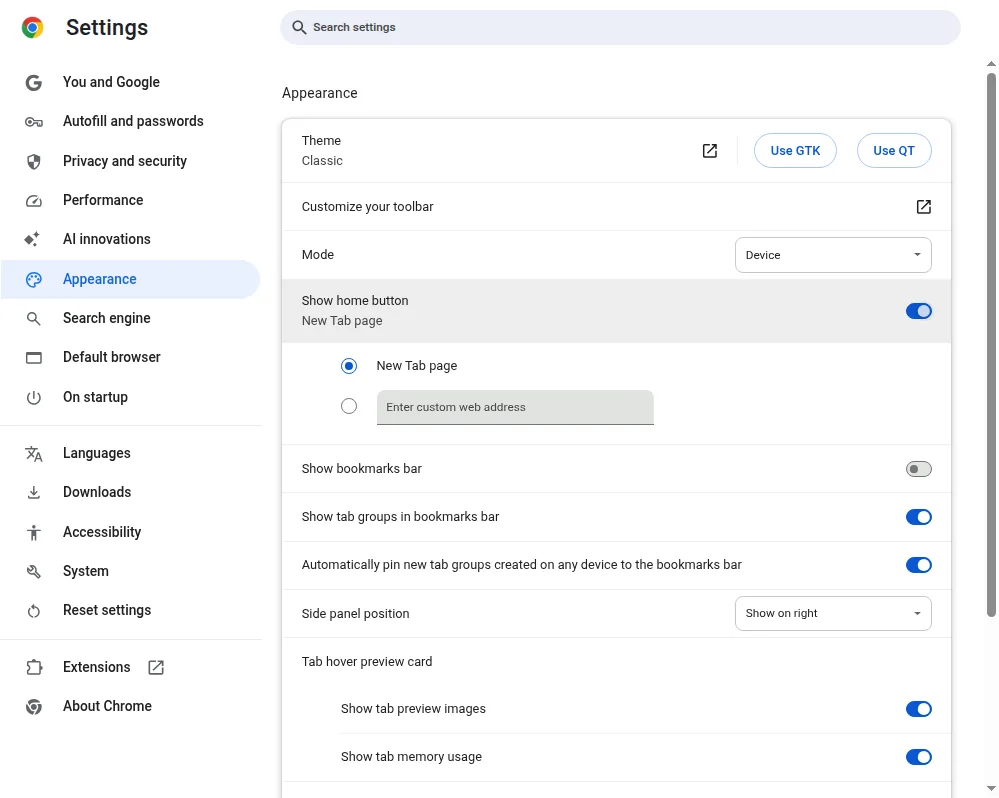
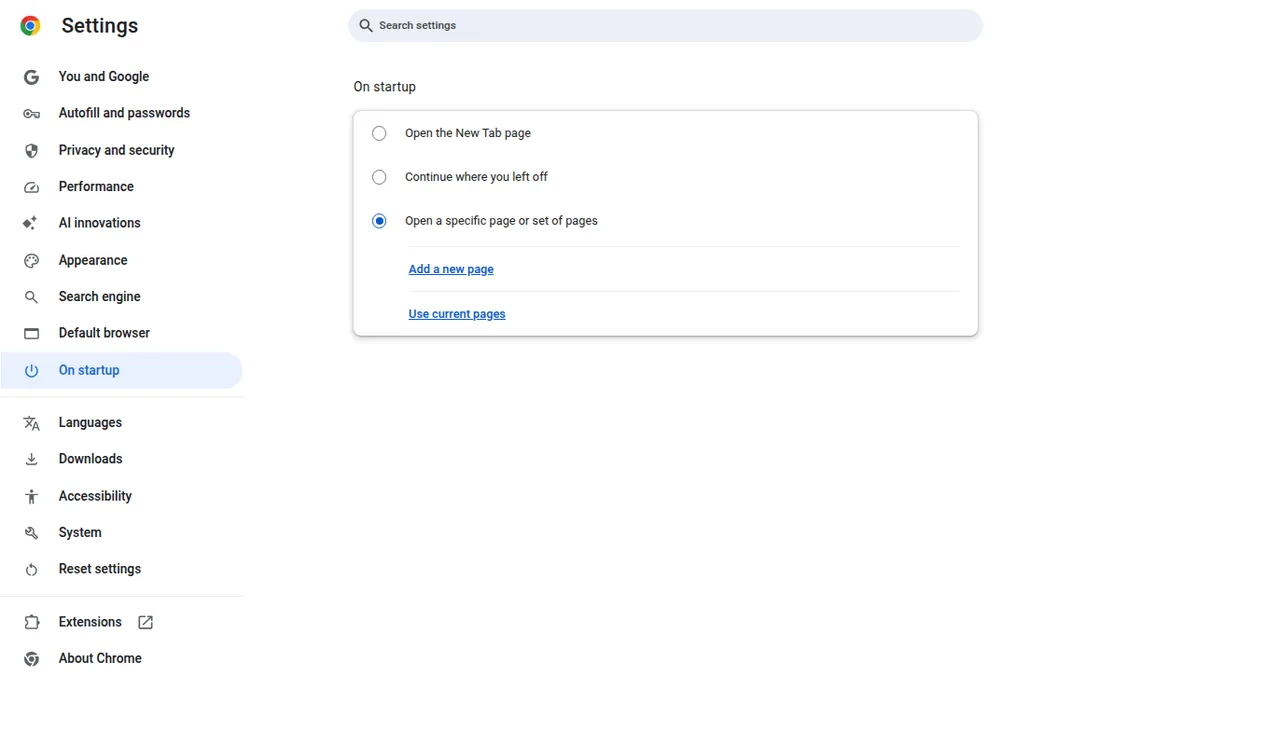
Official Chrome Help path (checked October 2026)
Chrome Help, “Set your homepage and startup page,” says the homepage (Home button) and the startup
page (first launch) are not the same unless you set them to be. Use Settings, Appearance, Show Home
button for a custom page such as https://www.dayblaster.com, and Settings, On startup,
Open a specific page or set of pages to add the same address. Other startup options in that article
are Open the New Tab page and Continue where you left off. If those pages changed without you, Chrome
Help points to unwanted software. See
homepage changed by itself and
Chrome New Tab page settings.
Microsoft Edge
- Open the … menu → Settings → Start, home, and new tabs.
- Under When Edge starts, choose Open these pages and add your address.
- Enable the Home button and set the same address.
Like Chrome, Edge's new tab page needs an extension to change.
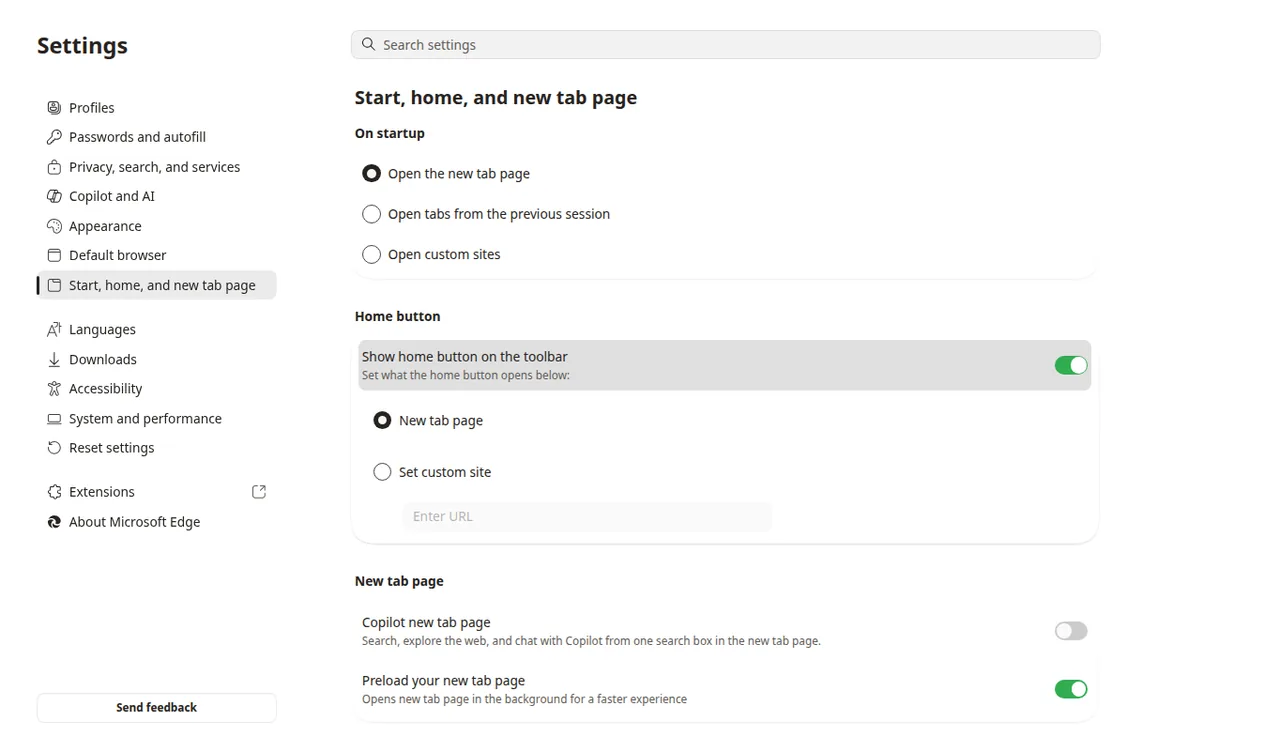
Official Microsoft Support path (checked October 2026)
Microsoft Support, “Change your browser home page,” says: Settings and more, Settings, Start, home,
and new tab page, turn on Show home button on the toolbar, then choose New tab page or Enter URL
(for example https://www.dayblaster.com). That article does not give a consumer Settings
field for an arbitrary new-tab website. Microsoft’s Edge Learning Center covers the new-tab gear
(background, quick links, feed). See
Edge homepage and new tab.
Mozilla Firefox
- Open the ≡ menu → Settings → Home.
- Set Homepage and new windows → Custom URLs → paste your address.
- Good news: Firefox also lets you set New tabs here (via an add-on), so it's the most flexible of the mainstream browsers.
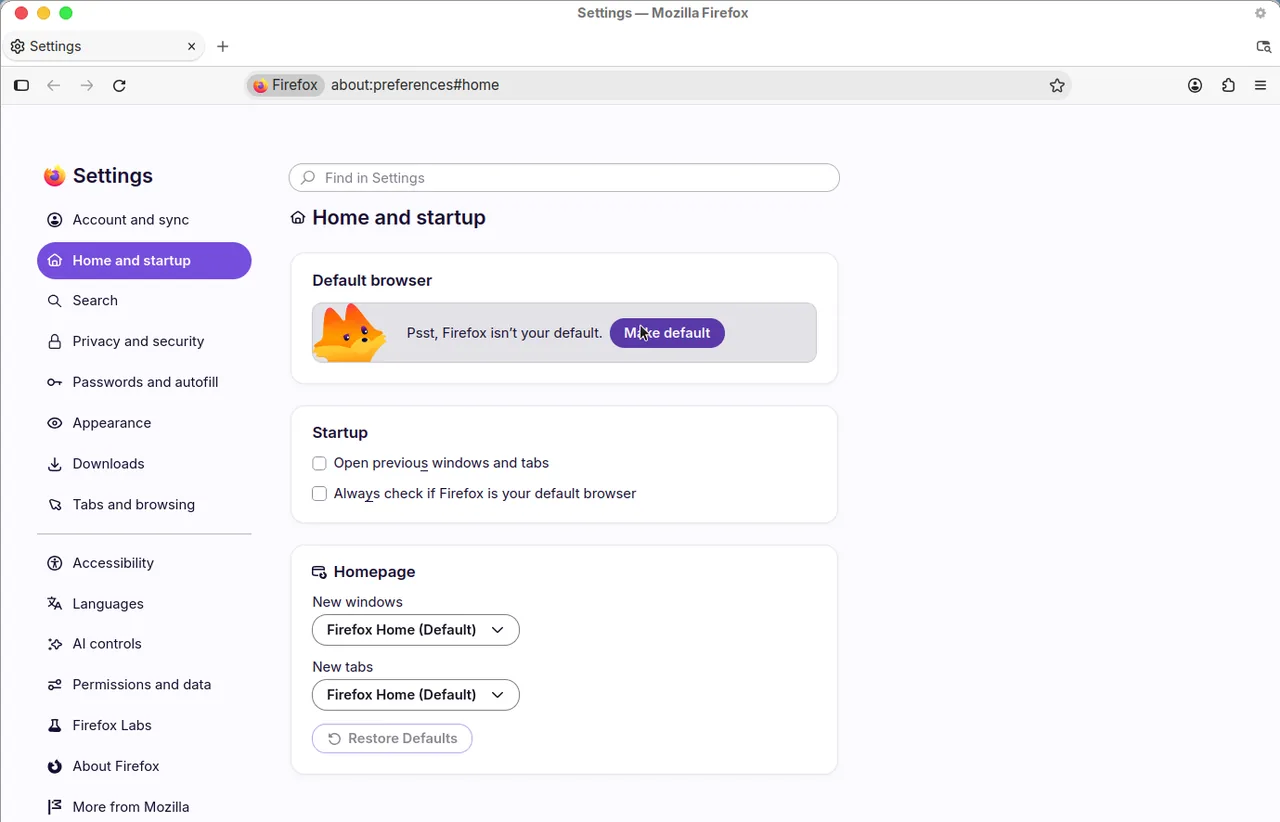
Official Firefox Help path (checked October 2026)
Mozilla’s “How to set the home page” (and Microsoft Support’s Firefox section) says: menu, Settings
(older builds: Options), Home, then Homepage and new windows. Choose Firefox Home (Default), Custom
URLs, or Blank page. Custom URLs can be https://www.dayblaster.com. Mozilla’s New Tab
help offers Firefox Home or a blank page for new tabs, not a custom website field. There is no
Firefox add-on for Dayblaster. See
Firefox homepage and new tab.
Safari (Mac)
- Open Safari → Settings → General.
- Set Homepage to your address.
- Set New windows open with and New tabs open with to Homepage.
Safari is generous here — it lets you point new tabs at your homepage without an extension.
Official Apple Support path (checked October 2026)
Apple Support, “Change your homepage in Safari on Mac,” says: Safari, Settings, General (Microsoft Support still says Preferences), enter a Homepage address or Set to Current Page, then set New windows open with and New tabs open with to Homepage. History, Home opens that page. Phone steps are on homepage on a phone.
Brave and Opera
Both are Chromium-based, so the steps mirror Chrome: Settings → Appearance / On startup for the homepage and startup page, and an extension for the new tab. Brave additionally has a built-in new-tab dashboard you can simplify under Settings → New Tab Page.
We did not find a first-party Brave Help or Opera Help article that documents a custom new-tab URL
field. The Chrome Help and Microsoft Support articles above are the official Chromium-family sources
we used. Dayblaster works as a website at https://www.dayblaster.com in those browsers.
The product’s Chrome new-tab extension is listed for Chrome.
The new-tab limitation, explained once and for all
If your goal is for every new tab to open your chosen page, settings alone won't get you there in Chrome, Edge, Brave or Opera. Google intentionally reserves the new-tab slot. The only supported way to change it is a lightweight browser extension that declares a "new tab override." That's not a hack — it's the official mechanism, and it's how every custom new-tab product works.
Official sources
- Set your homepage and startup page (Google Chrome Help, checked October 2026)
- Customize your New Tab page in Chrome (Google Chrome Help, checked October 2026)
- Change your browser home page (Microsoft Support, Edge, Chrome, Firefox, and Safari sections, checked October 2026)
- How to customize the new browser tab pages in Microsoft Edge (Microsoft Edge Learning Center, 12 June 2025, checked October 2026)
- How to set the home page (Firefox Help, checked October 2026)
- Customize items on your Firefox New Tab page (Firefox Help, checked October 2026)
- Change your homepage in Safari on Mac (Apple Support, checked October 2026)
- Dayblaster Chrome Web Store listing (checked October 2026)
More guides: Dayblaster start page · Best free AI tools 2026 · Turn your new tab into a command center · Dayblaster vs Momentum · Dayblaster vs start.me · All guides · About · Contact · Terms · Chrome Web Store · Cookie settings