Guides › Firefox homepage and new tab
Set the Firefox homepage and new tab
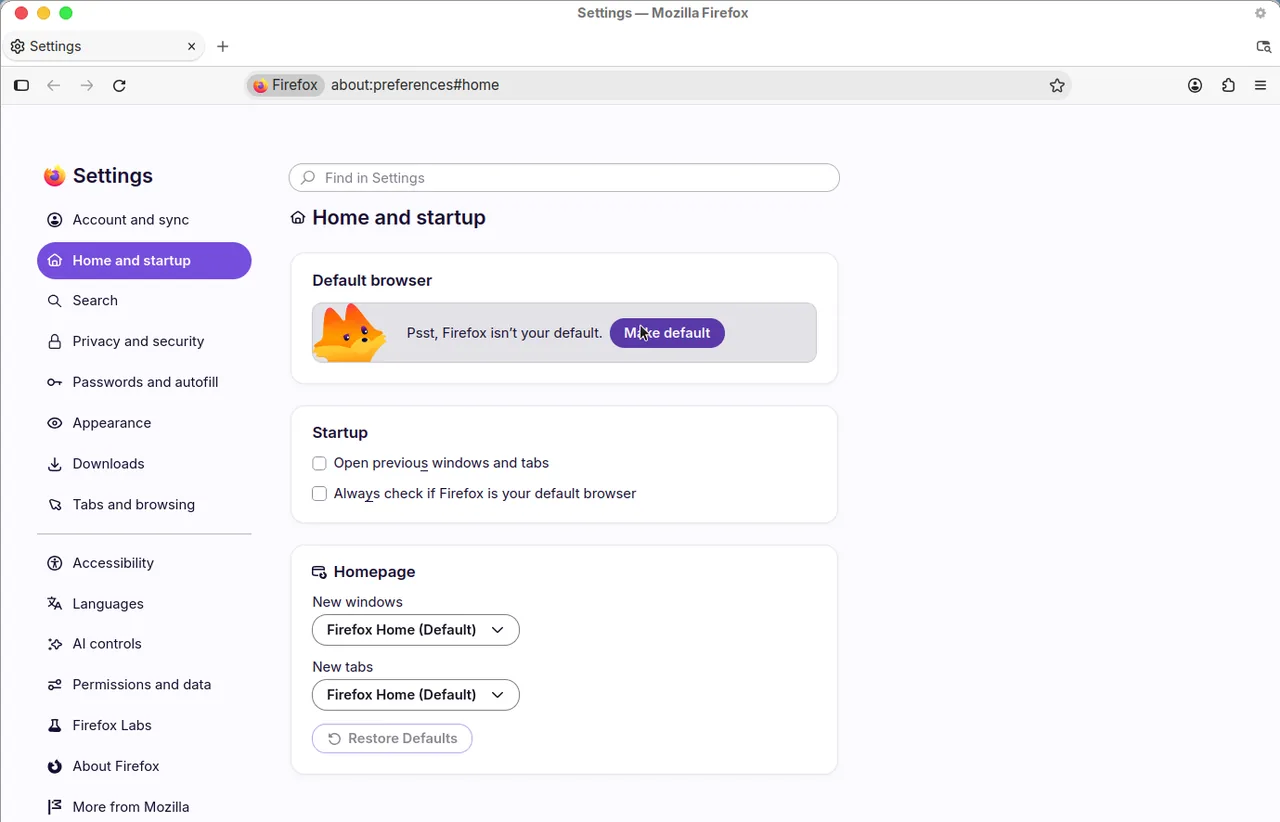
Firefox Settings let you set Homepage and new windows to Firefox Home, a custom URL, or a blank page. New tabs use Firefox Home or a blank page; Mozilla’s New Tab help does not give a custom website field for every new tab.
Homepage and new windows
Mozilla’s article “How to set the home page” is the official source for this setting. Microsoft Support restates the same Firefox path in “Change your browser home page.” Checked October 2026:
- Open Firefox and select the menu button (three lines), then Settings (Microsoft’s article still says Options on older builds).
- Open the Home panel.
- Under New Windows and Tabs, open the menu next to Homepage and new windows.
- Choose Firefox Home (Default), Custom URLs, or Blank page.
- For Custom URLs, enter
https://www.google.comor another address such ashttps://www.dayblaster.com.
Firefox can add a Home button when you set a custom homepage. That button opens the homepage. It does not automatically rewrite every new tab.
What Firefox Home and the New Tab page can show
Mozilla’s “New Tab page in Firefox” and “Customize items on your Firefox New Tab page” (checked October 2026) say the New Tab page can show web search, Shortcuts to sites you save or visit most, recommended stories, and other blocks. The New Tab page is the default Firefox start page unless you set a different home page.
Mozilla’s customize article describes Shortcuts as follows:
- Add a shortcut from an empty Add Shortcut tile: enter a title, URL, and an optional image.
- If there is no empty tile, edit an existing shortcut.
- You can pin, unpin, remove, or rearrange shortcuts.
- The gear or pencil control on the New Tab page opens a panel where you can choose how many shortcut rows to show.
Sponsored shortcuts can appear if that option is enabled. Mozilla’s New Tab article says you can hide or show each section with the toggles in that panel, and that Manage more settings opens the full Settings panel.
Set new tabs to a blank page
From Mozilla’s customize article:
- On the New Tab page, select the gear or pencil control.
- Select Manage more settings.
- Under New Windows and Tabs, set New tabs to Blank Page.
The same article says you can set Homepage and new windows to Blank Page if you want a blank page when Firefox starts or opens a new window. That is still not a custom website on every new tab.
Recommended stories and Pocket
Mozilla’s “Recommended stories in the Firefox new tab page” article (the page that now redirects from older “hide Pocket recommendations” URLs) says Pocket services shut down on 8 July 2025, that Pocket integration with desktop Firefox is removed starting in Firefox 140, and that saved Pocket items could be exported until 8 October 2025. The current control on the New Tab page is the Recommended stories toggle in the same gear panel. You can also uncheck sponsored stories if you want recommendations without sponsored cards.
This page does not treat Pocket as a current Firefox Home feature. If your Firefox build still shows a Pocket label, use the recommended-stories toggle on the New Tab page or the Home panel toggles in Settings.
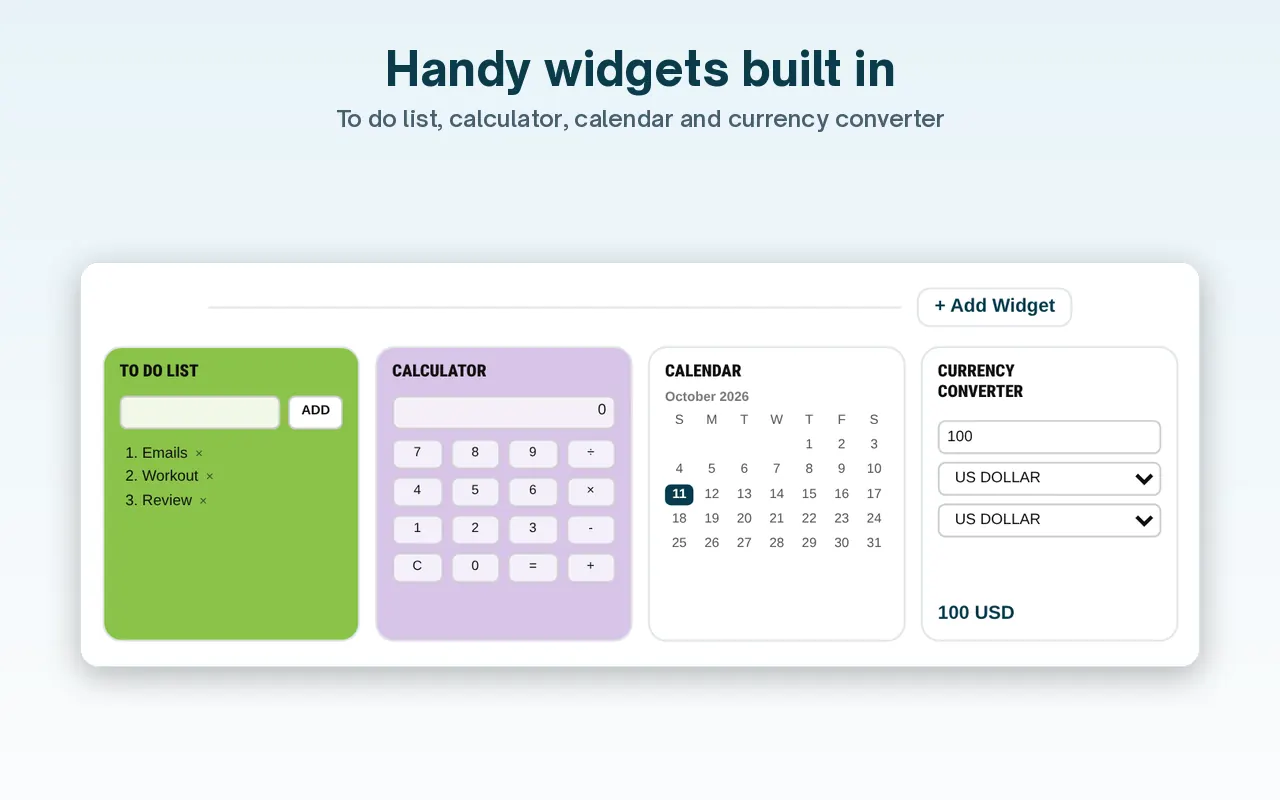
Use Dayblaster as the Firefox homepage
Choose Custom URLs and enter https://www.dayblaster.com. That covers new windows and the
Home button. For new tabs, Firefox Help offers Firefox Home or a blank page, not a custom URL. Dayblaster
does not offer a Firefox add-on.
See also set or replace a Google homepage, the all-browser guide, Edge, and a homepage that changed by itself.
Firefox Home shortcuts versus Dayblaster zones
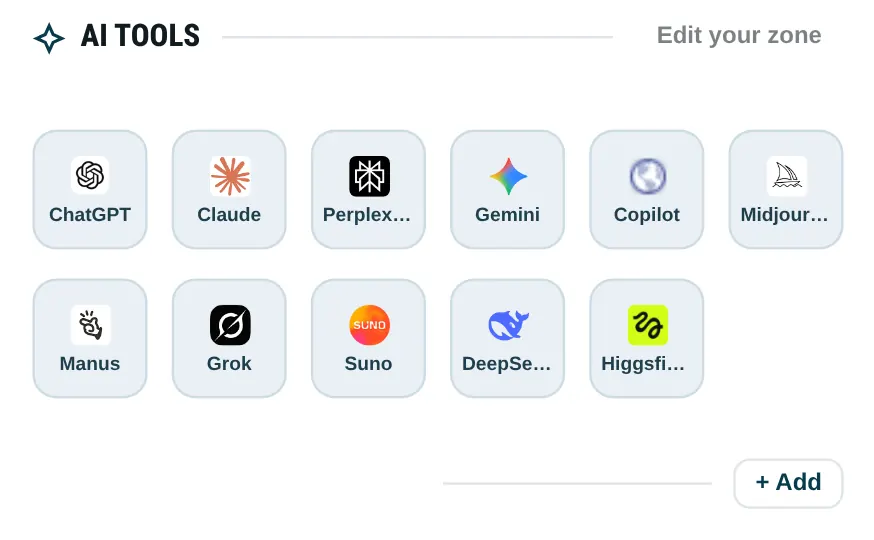
Mozilla’s New Tab help says Shortcuts start as popular sites and search engines, then shift toward sites from your history. You can pin a site so it stays. Dayblaster zones do not read Firefox history. You add each shortcut yourself, or import a kit. That is a different model: Firefox Home is tied to the profile’s local browsing; Dayblaster is a web page whose shortcuts live in the page’s own storage (and in the optional account).
Mozilla also documents sponsored shortcuts and recommended stories as things you can hide. Those toggles only affect Firefox Home. They do not appear on dayblaster.com. If you set Homepage and new windows to Dayblaster and leave New tabs on Firefox Home, you will see both designs in one session. Set both dropdowns deliberately so that split is a choice.
Firefox for Android and Firefox for iOS have their own Homepage customize screens in Mozilla’s help (Shortcuts, Jump back in, recently saved, and older Pocket / thought-provoking stories toggles). This page covers desktop Firefox. Phone steps are on homepage on a phone for Chrome and Safari, not for Firefox mobile, because this project does not list a Firefox mobile app.
If an add-on stole the new tab
Open about:addons, select Extensions, and remove any new-tab or “dashboard” add-on
you did not mean to keep. Then confirm Homepage and new windows still show the URL you typed.
Mozilla’s home-page article is the reset path for the homepage field. The New Tab customize
article is the reset path for Shortcuts and recommended stories.
Firefox Help does not describe a Chrome-style “reset all settings” button in the articles cited here. If a search hijack remains after you remove add-ons, Mozilla’s wider troubleshooting docs are the next official stop. This page stays inside the Home and New Tab articles we read.
Official sources
- How to set the home page (Firefox Help, checked October 2026)
- Customize items on your Firefox New Tab page (Firefox Help, checked October 2026)
- New Tab page in Firefox (Firefox Help, checked October 2026)
- Recommended stories in the Firefox new tab page (Firefox Help, including the Pocket shutdown note, checked October 2026)
- Change your browser home page (Microsoft Support, Firefox section, checked October 2026)
More: Guides · FAQ · About · Contact · Terms · Chrome Web Store · Cookie settings