Guides › Add shortcuts to your new tab
How to add shortcuts to your new tab page
The sites you visit every day should be one click away — not one search away. Here's how to add shortcuts to your new tab page in every major browser, and how to get unlimited, organized shortcuts on any of them.
Every browser gives you a small set of shortcut tiles on the new tab page, but they're limited and easy to lose. Below are the exact steps for Chrome, Edge and Firefox, followed by the way to go beyond those limits.
Add a shortcut in Chrome
- Open a new tab (Ctrl+T / Cmd+T).
- Click + Add shortcut below the search box. (If you don't see it, click the gear icon in the bottom-right and turn on Shortcuts.)
- Type a name and the website address, then click Done.
Chrome lets you keep up to 10 shortcuts. To edit one, hover it, click the three dots, and choose Edit.
Official Chrome Help path (checked October 2026)
Chrome Help, “Customize your New Tab page in Chrome,” is the first-party source for the built-in tile row. It says you must be signed in to a Google Account and use Google as your default search engine to customize that page. The article does not give a custom website field for every new tab. Steps from that article:
- On your computer, open Chrome.
- Open a new tab. At the bottom right, select Customize Chrome.
- Under Shortcuts, select My shortcuts or Most visited sites.
- To hide the row, turn off Show shortcuts.
- To edit or remove a tile, point at its icon, select More, then choose Edit shortcut or Remove.
Chrome Help does not state a maximum number of tiles on that page. The “up to 10” line above is the product behavior we have seen in Chrome. It is not a sentence copied from Chrome Help. See also Chrome New Tab page settings.
Add a shortcut in Microsoft Edge
- Open a new tab and find the Quick links row.
- Click the + (plus) tile.
- Enter the name and URL, then Add.
If Quick links are hidden, open the page settings (gear icon) and set the layout to Custom or Focused so shortcuts appear.
Official Microsoft Edge path (checked October 2026)
Microsoft’s Edge Learning Center article “How to customize the new browser tab pages in Microsoft Edge” (12 June 2025) says to open a new tab (Ctrl+T), click the gear icon, then add quick links to favorite sites. The same article lists a background image, a feed layout, content toggles, and extensions from the Microsoft Edge Add-ons Store. Microsoft Support, “Change your browser home page,” is a different setting: Settings and more, Settings, Start, home, and new tab page, then the Home button URL. That Home URL is not the Quick links row.
Official Edge help does not give a Settings field that points every new tab at an arbitrary website. Quick links stay on Edge’s built-in new tab. See change the homepage and new tab in Edge.
Add a shortcut in Firefox
- Open a new tab and look at the Shortcuts (top sites) row.
- Hover a blank tile and click the pencil, or click the three-dot menu on any site and pick Pin.
- Enter a title and URL and save.
Official Firefox Help path (checked October 2026)
Mozilla’s “Customize items on your Firefox New Tab page” says you can add a shortcut from an empty Add Shortcut tile (title, URL, optional image), or edit an existing one, and pin, unpin, remove, or rearrange shortcuts. A gear or pencil control sets how many shortcut rows to show. Mozilla’s New Tab help does not give a custom website field for every new tab. See set the Firefox homepage and new tab.
The limits of built-in shortcuts
Browser shortcuts are handy but restrictive:
- You're capped at roughly 8–10 tiles.
- You can't group them (work vs personal vs tools).
- They don't sync well across different browsers.
- Clearing browsing data can wipe them.
Get unlimited, grouped shortcuts on any browser
If you want more than a handful of tiles, a free start page like Dayblaster turns your new tab into an organized launchpad. You get editable shortcut zones — label them "Work", "AI tools", "Google apps", anything — with as many shortcuts as you like, plus a to-do list, calculator, clock, and live news and markets. It works as your new tab or homepage in any browser, and signing in keeps everything synced and backed up.
- Open Dayblaster — no signup required to start.
- Click + Add in any zone, enter a name and URL, and it appears instantly.
- Set it as your homepage or new tab so it loads every time.
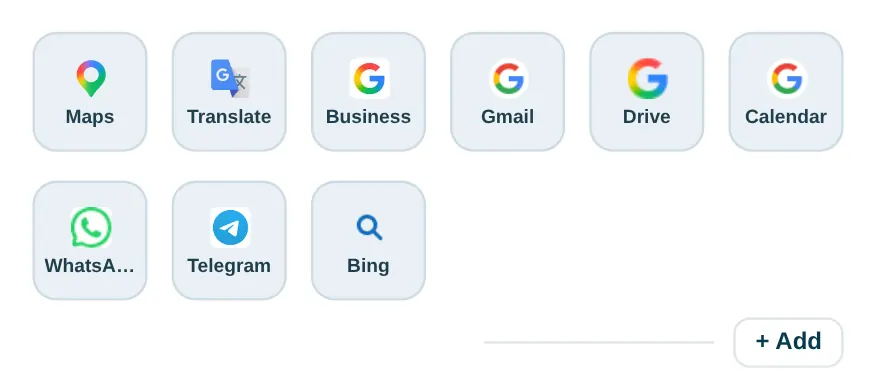
This site’s facts page lists the zones in the product: My Work Zone, My Fun Zone, AI Tools, and a Google apps row. Shortcuts can be added, edited, deleted, and dragged to reorder. Optional setup kits import a ready-made shortcut layout (Developer, Creator, Student, Trader). A kit swaps shortcuts only.
Without an account, those shortcuts stay in the browser (localStorage). Chrome Help, “Set your homepage and startup page,” documents an On-device site data control that can delete data sites have saved when you close all windows. Clearing browsing data can also remove Web Storage. That is why a signed-in Dayblaster account, or a downloaded backup file, is the durable copy. See recover a lost dashboard.
Official sources
- Customize your New Tab page in Chrome (Google Chrome Help, checked October 2026)
- Set your homepage and startup page (Google Chrome Help, including on-device site data, checked October 2026)
- How to customize the new browser tab pages in Microsoft Edge (Microsoft Edge Learning Center, 12 June 2025, checked October 2026)
- Change your browser home page (Microsoft Support, checked October 2026)
- Customize items on your Firefox New Tab page (Firefox Help, checked October 2026)
- New Tab page in Firefox (Firefox Help, checked October 2026)
- Dayblaster product facts (this site, checked October 2026)
More: Set your homepage & new tab · New tab productivity tips · All guides · About · Contact · Terms · Chrome Web Store · Cookie settings