Guides › Students and teachers
A start page for students and teachers
Dayblaster ships a Student setup kit you can import in one click. There is no separate Teacher kit in the product. Teachers can use the same Classroom, Drive and Calendar shortcuts and add their own sites.
What exists in the product
Setup kits currently lists four layouts: Developer, Content Creator, Student and Trader. The Student kit is one of those four; there is no separate Teacher kit on the Kits page. This page does not invent a second kit.
Importing a kit, as kits.html states, swaps shortcuts only. Widgets, tasks and background stay. The previous layout is snapshotted. Signed-in users can roll back from Restore an earlier version.
What the Student kit contains
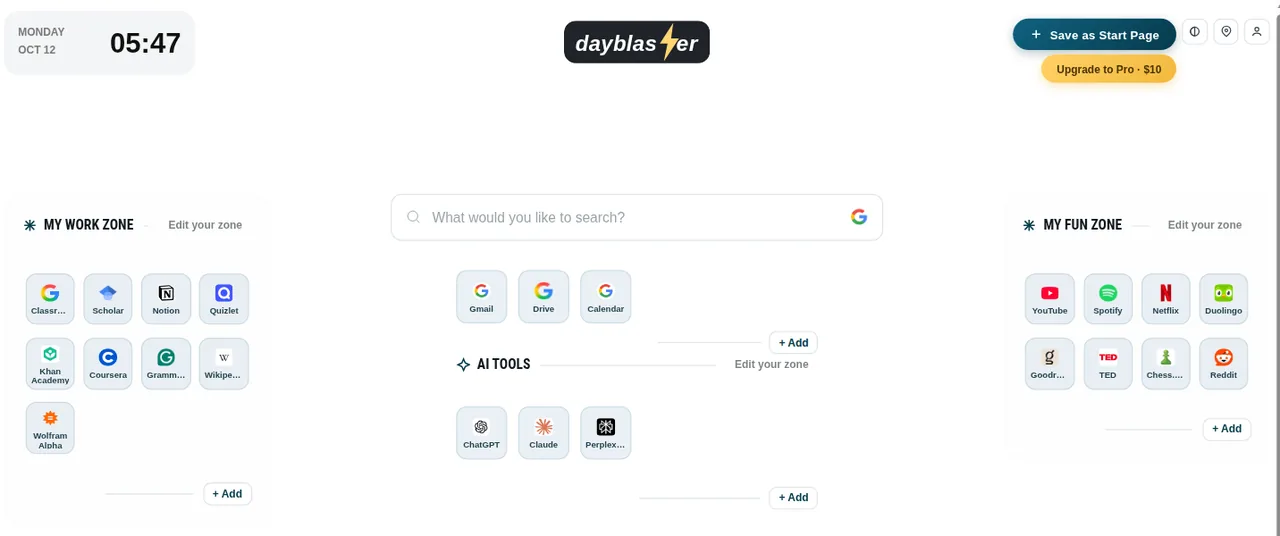
These titles and addresses are the kit file, not a guess:
| Zone | Shortcut | Address |
|---|---|---|
| Google apps | Gmail | https://mail.google.com |
| Google apps | Drive | https://drive.google.com |
| Google apps | Calendar | https://calendar.google.com |
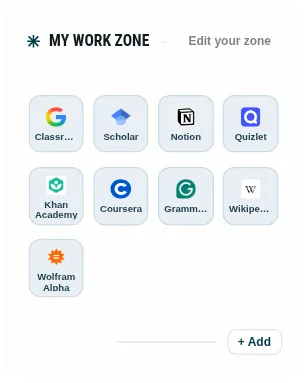
| Work / study zone | Classroom | https://classroom.google.com |
| Work / study zone | Scholar | https://scholar.google.com |
| Work / study zone | Notion | https://www.notion.so |
| Work / study zone | Quizlet | https://quizlet.com |
| Work / study zone | Khan Academy | https://www.khanacademy.org |
| Work / study zone | Coursera | https://www.coursera.org |
| Work / study zone | Grammarly | https://www.grammarly.com |
| Work / study zone | Wikipedia | https://www.wikipedia.org |
| Work / study zone | Wolfram Alpha | https://www.wolframalpha.com |
| Fun zone | YouTube | https://www.youtube.com |
| Fun zone | Spotify | https://open.spotify.com |
| Fun zone | Netflix | https://www.netflix.com |
| Fun zone | Duolingo | https://www.duolingo.com |
| Fun zone | Goodreads | https://www.goodreads.com |
| Fun zone | TED | https://www.ted.com |
| Fun zone | Chess.com | https://www.chess.com |
| Fun zone | https://www.reddit.com | |
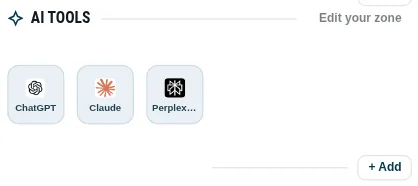
| AI Tools | ChatGPT | https://chatgpt.com |
| AI Tools | Claude | https://claude.ai |
| AI Tools | Perplexity | https://www.perplexity.ai |
kits.html’s shorter Student card also names Classroom, Scholar, Drive, Notion, Quizlet, Khan Academy, Coursera, Grammarly, Wikipedia, the study-break Fun zone, ChatGPT, Claude and Perplexity. The JSON file is the complete list.
How to import the Student kit
- Open https://www.dayblaster.com/?kit=student, or choose Student on kits.html.
- Confirm the import when the site asks. The confirm step is part of the kit flow in the product.
- Your previous shortcuts are snapshotted. Widgets stay.
- Edit any tile: change the name, URL, or remove it. Add your school’s LMS or library if it is not in the kit.
Then set Dayblaster as the homepage if you want it on launch. Steps: homepage guide and add shortcuts.


What teachers can do without a Teacher kit
Classroom, Drive, Calendar and Gmail are already in the Student kit. A teacher can import that kit and then:
- Rename the study zone to “Classes” or “This term.”
- Add the school portal, gradebook, or video tool with + Add.
- Remove student-only tiles such as Quizlet or Khan Academy if they are not useful.
- Use the To Do widget for a class checklist. The kit does not create those tasks for you.
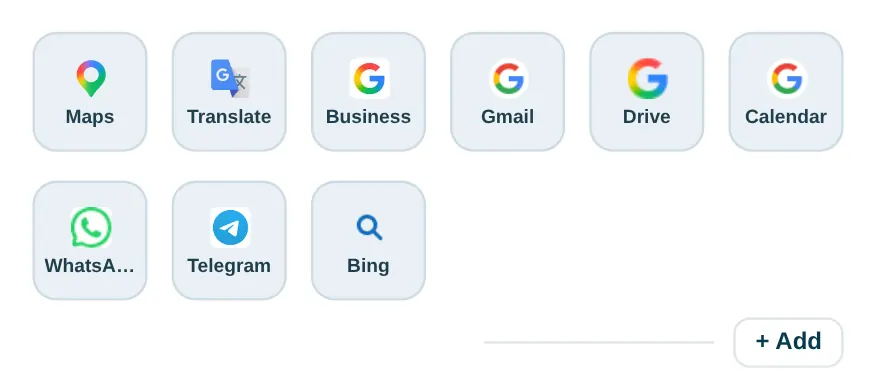
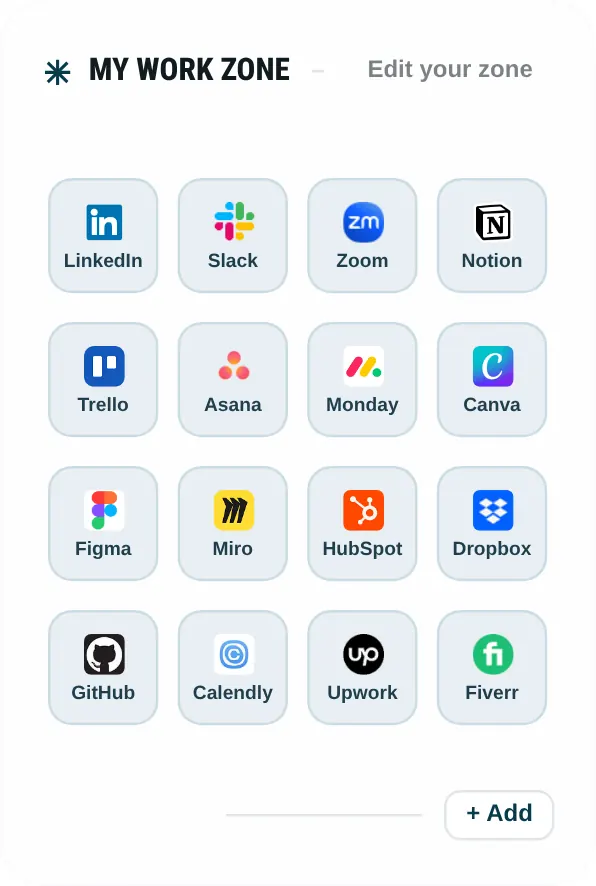
The Student kit screenshots sit with the import steps. The default Dayblaster zone images next to them are for comparison, not the Student kit.
How students usually edit the kit
The kit is a starting list. A high-school student might keep Classroom, Drive and Calendar and delete Coursera. A university student might add the campus mail system and the library catalog. None of those school URLs are in student.json, so they have to be added by hand. Use the shortcuts guide for the + Add control.
AI Tools in the kit are ChatGPT, Claude and Perplexity only. The default Dayblaster AI row on a fresh page is longer (facts.html lists ChatGPT, Claude, Perplexity, Gemini, Copilot, Midjourney, Manus, Grok, Suno, DeepSeek and Higgsfield). Importing the Student kit replaces the AI row with those three. You can add Gemini or others back after import.
Shared computers: without an account, the kit lives in that browser’s localStorage. A lab machine that clears site data will drop the layout. A free account, as facts.html describes, stores the email and page settings so you can open the same kit on another browser. Teachers who share a demo machine should export a backup file before the next class, or use a signed-in profile.
Dayblaster is not a learning-management system. Classroom still holds assignments. The start page only stores links. School policies on AI tools still apply to ChatGPT, Claude and Perplexity even when they sit in the AI Tools row.
The other kits, briefly
Developer, Creator and Trader kits exist on the same kits page. They are not student or teacher layouts. Developer includes GitHub, Stack Overflow, MDN and related tools. Creator includes YouTube Studio, Canva and similar. Trader includes TradingView and finance sites. Importing any of them replaces shortcuts the same way the Student kit does. Use Student unless you actually want those other lists.
Teachers who want a class set of links can build them once on a signed-in Dayblaster account, download a backup, and restore that file on a shared machine. That restore path is documented on recover-my-dashboard.html. There is still no separate Teacher kit.
If the import confirm dialog does not appear, open the kit URL again and wait for the on-page confirm. The product is built to ask before it swaps shortcuts. That confirm is the difference between a one-click kit and a silent overwrite.
After import, set the page as your homepage if you use a shared or school computer that otherwise opens a blank Google tab. The Student kit does not change Chrome or Edge settings. You still use the official homepage path on the homepage guide.
Sources
- Setup kits page (Student card and the non-destructive import note)
- The Student kit on the Kits page (complete shortcut list)
- Add shortcuts to your new tab
- Product facts (kits named: Developer, Creator, Student, Trader)
More: Kits · Add shortcuts · Guides · About · Contact · Terms · Chrome Web Store · Cookie settings